14. Exercise: Add EditText, Done Button, ClickHandler
ANDK L2 42 Click Handler SC
Android Developer Documentation:
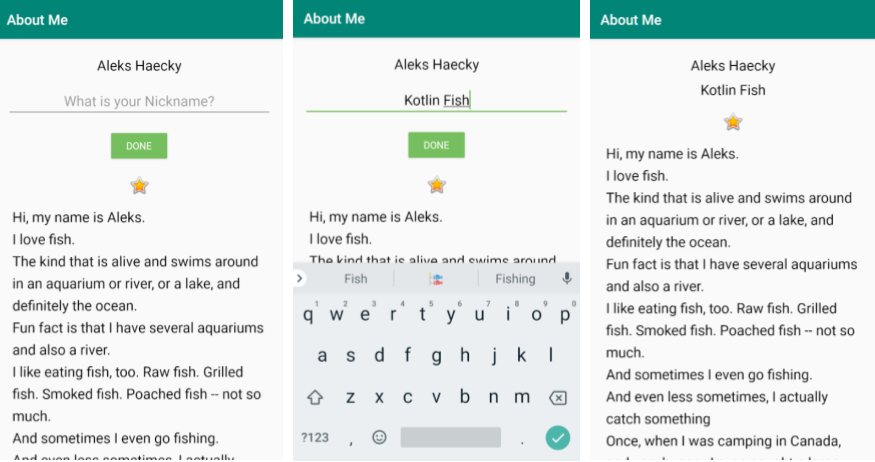
In this exercise, do the following to finish out the AboutMe app:
- Add an EditText to get input for the nickname. Style with NameStyle.
- Add a hidden TextView for displaying the inputted text. Style with NameStyle.
- Add a Done button.
- Add a click handler to the Done button that displays the inputted text in the TextView and hides the EditText and button.
In your click handler:
- Find references to the
nickname_editandnickname_text views. - Set the text of
nickname_textto the value ofnickname_edit:
nicknameTextView.text = editText.text - Update the visibility of the views. Use
View.VISIBLEandView.GONEto set the visibility of the views.
In onCreate(), set a click handler like this:
findViewById<Button>(R.id.done_button).setOnClickListener {
   addNickname(it)
}
Hint: In your click handler, add this code to hide the keyboard after input is complete:
// Hide the keyboard.
val imm = getSystemService(Context.INPUT_METHOD_SERVICE) as InputMethodManager
imm.hideSoftInputFromWindow(view.windowToken, 0)
Here is what your finished app should look like.
If you want to start at this step, you can download this exercise code from: Step.04-Exercise-EditText-DoneButton-ClickHandler.
You will find plenty of //TODO comments to help you complete this exercise, and if you get stuck, go back and watch the video again.
Once you’re done, you can check your solution against the solution we’ve provided here Step.04-Solution-EditText-DoneButton-ClickHandler or using this git diff
Task Description:
Check the steps below as you implement them to complete this exercise.
Task Feedback:
Great, now go and show your AboutMe app to a friend!
Solution: Step.04-Solution-EditText-DoneButton-ClickHandler or diff